






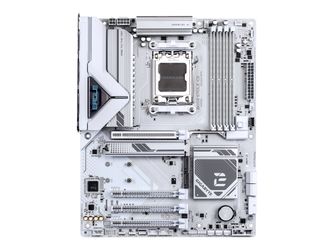
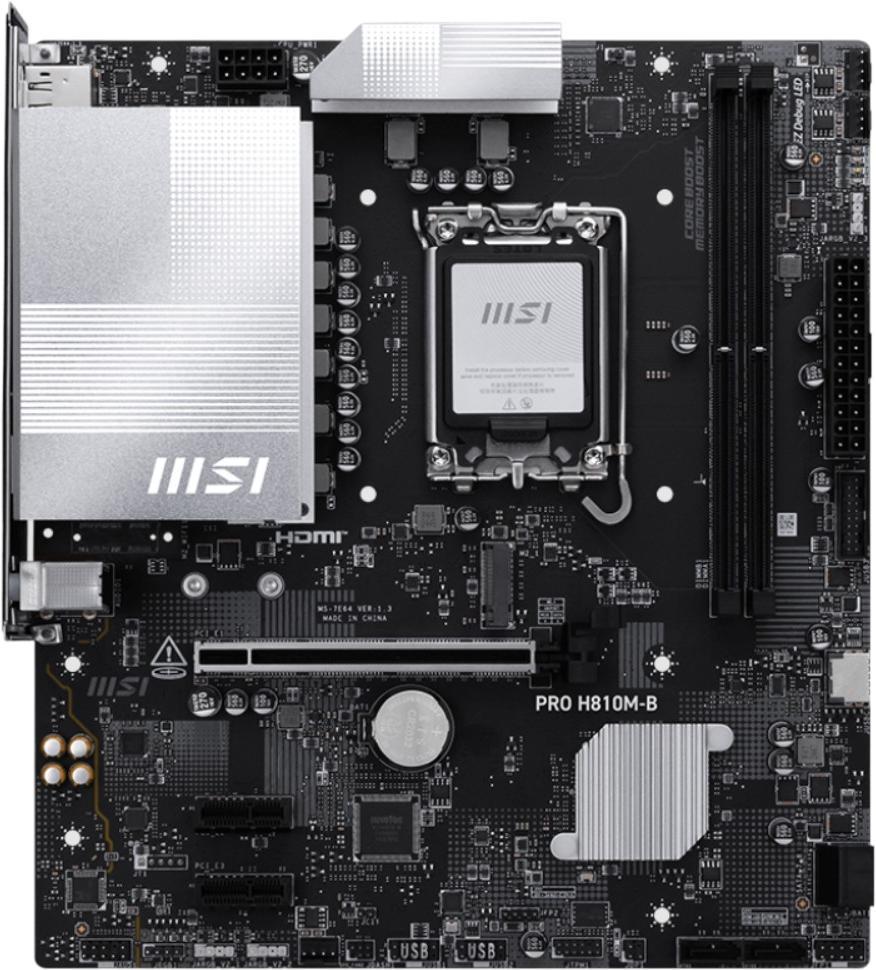
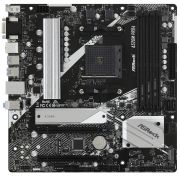
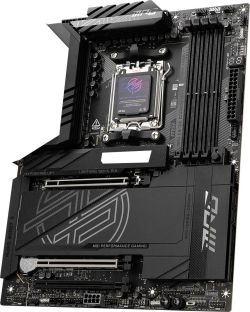
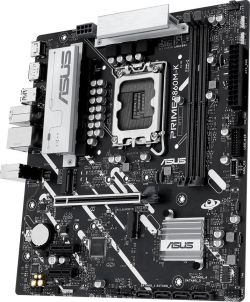
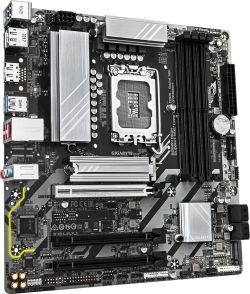
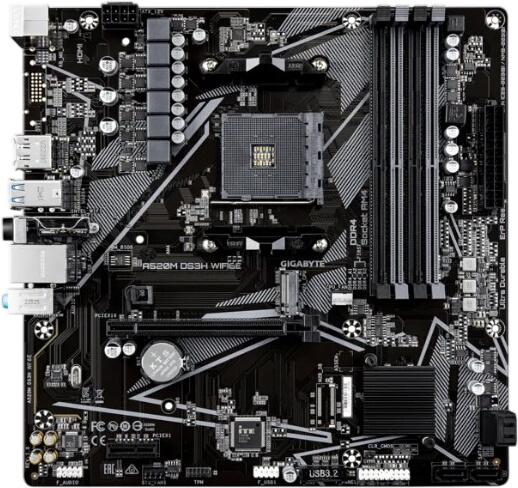
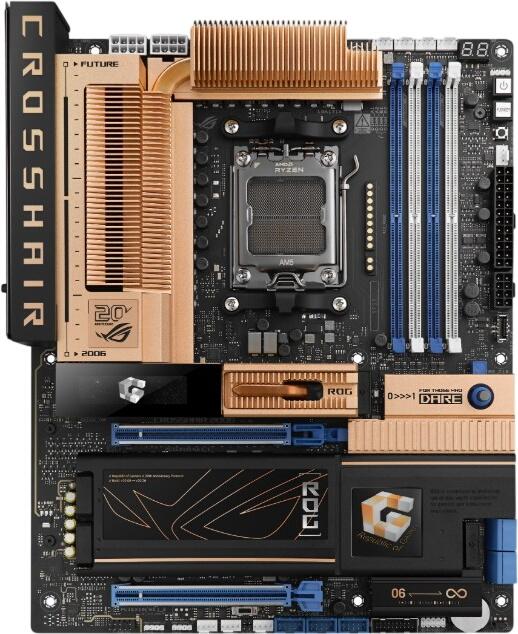
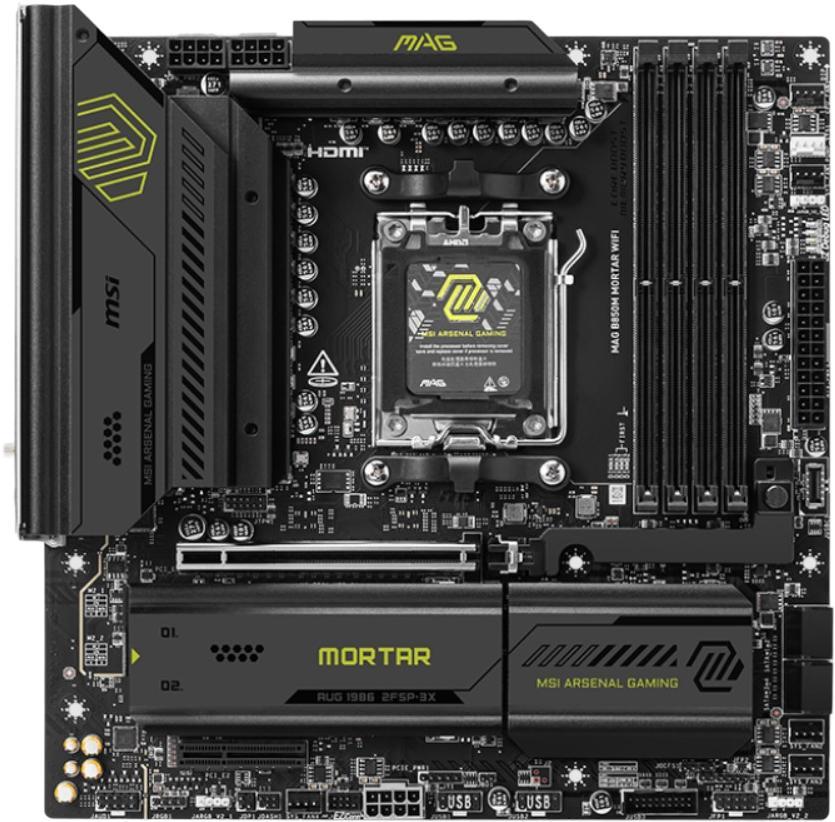
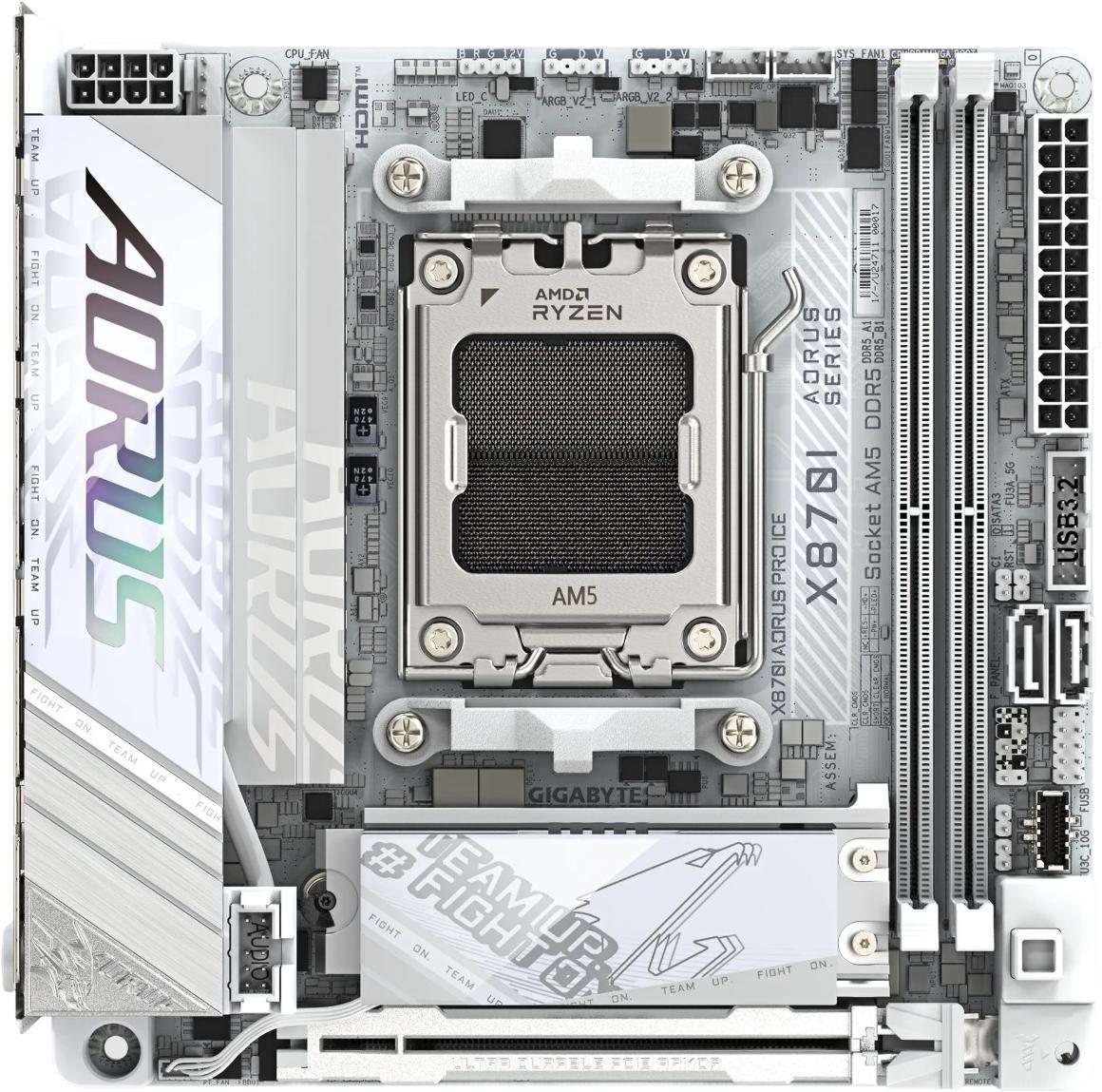
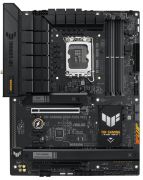
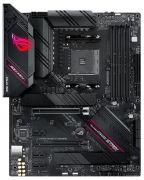
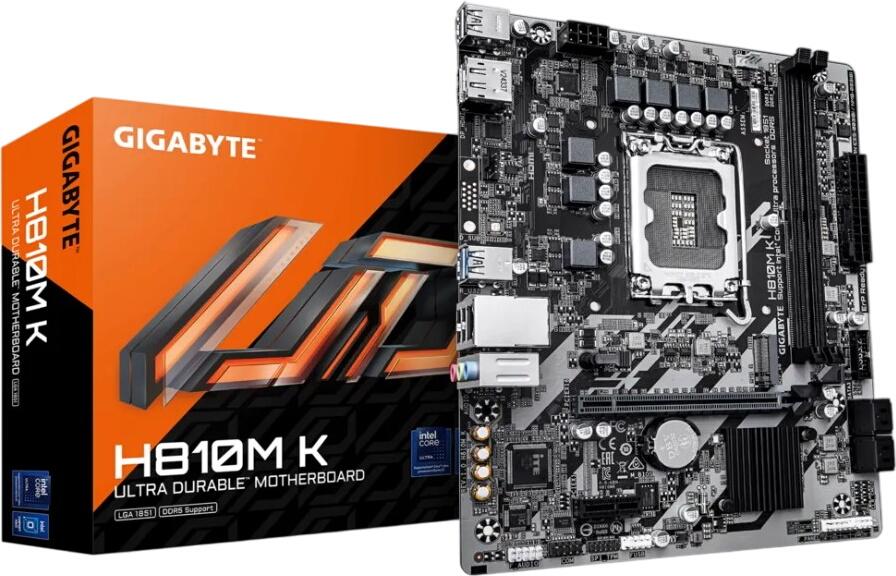
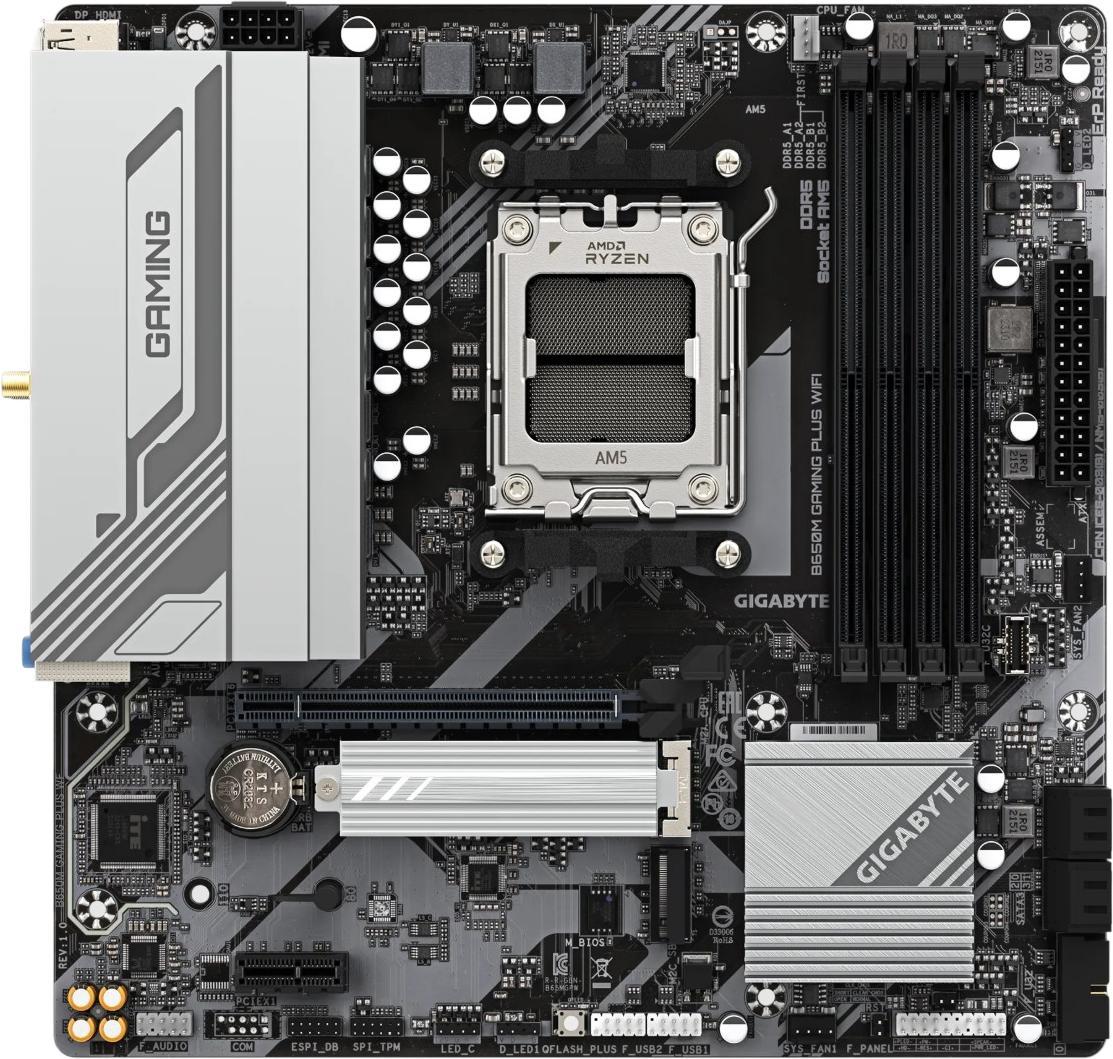
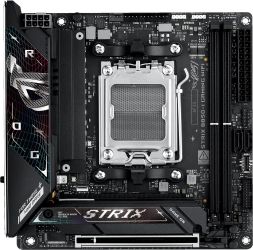
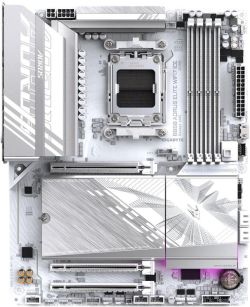
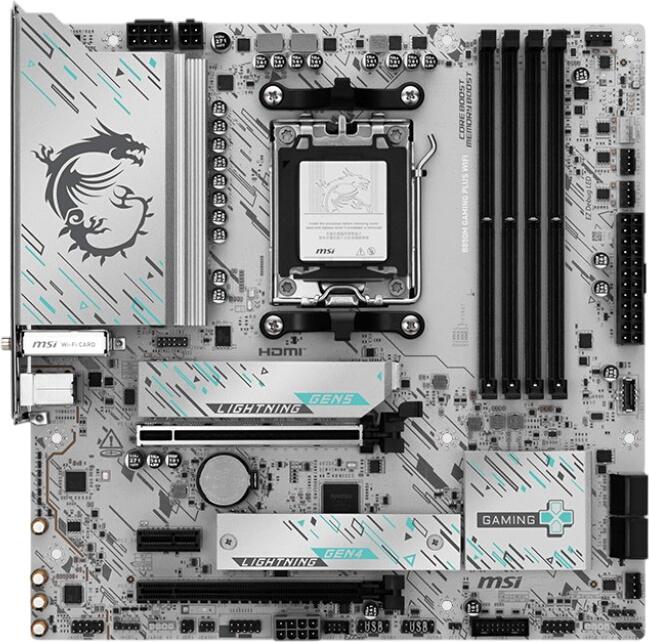
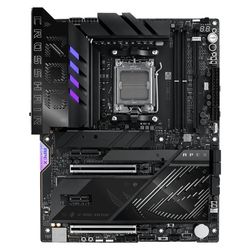
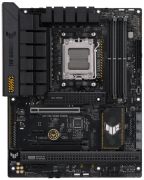
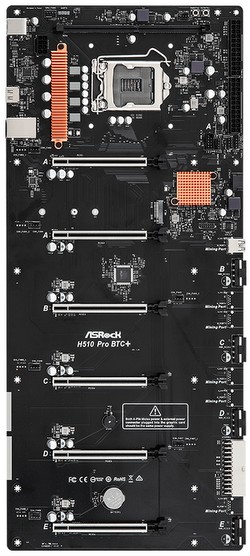
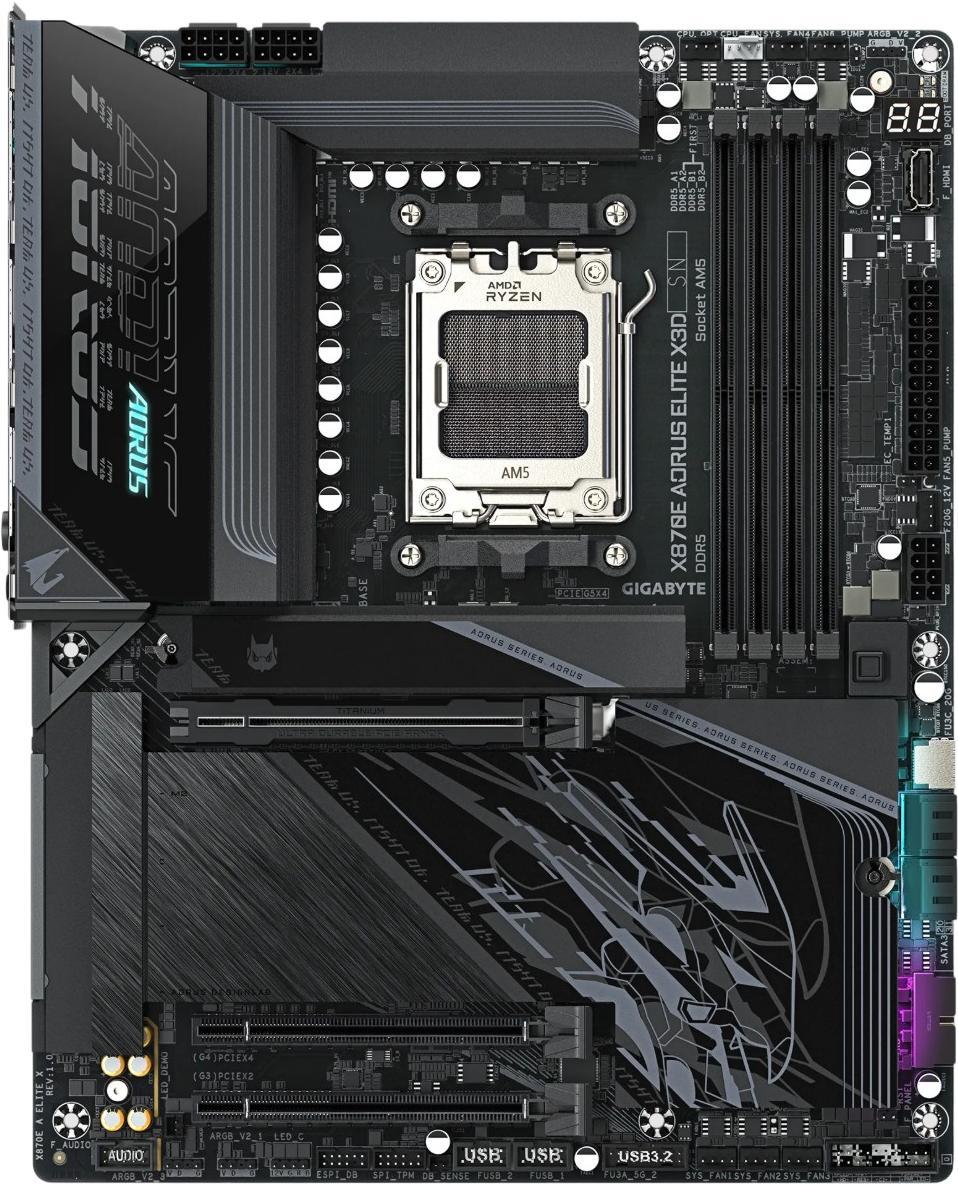
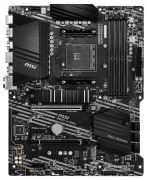
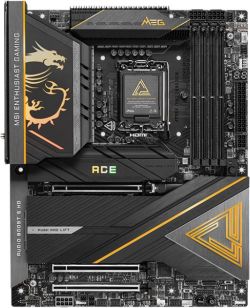
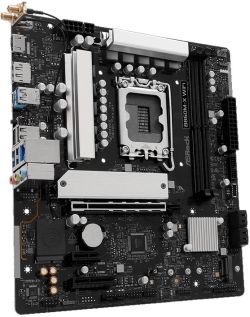
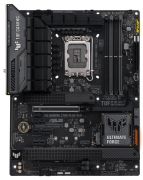
Newly Added Products






Motherboards: Consumer tips
What role does the motherboard perform?
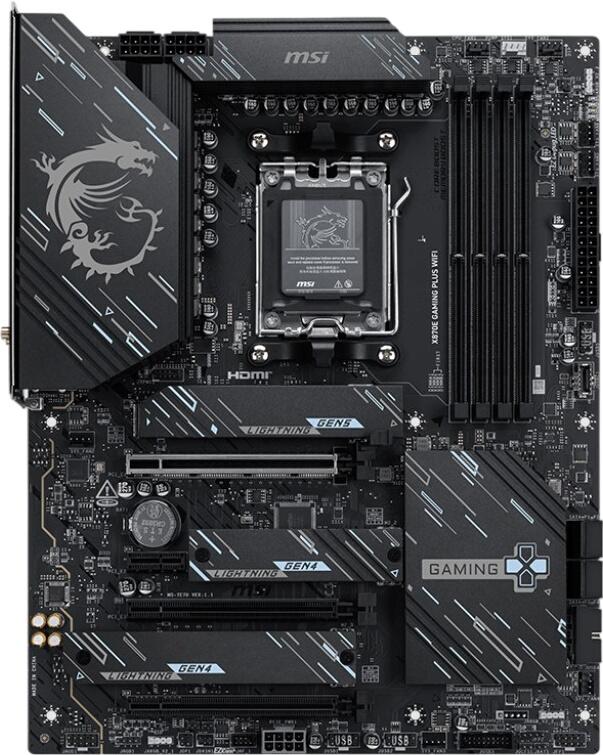
The motherboard, also called the mainboard, is the central circuit board that links all the key components in the PC. The processor, memory, graphics card, SSDs, cooling and external connections all communicate through it. In practical terms, that means the motherboard controls not only what you can install today, but also what upgrades remain possible later.
Motherboards now include many functions that once needed separate expansion cards. Depending on the board, that can include:
- Ethernet networking
- Wi-Fi and Bluetooth
- Integrated audio
- Multiple USB controllers
- M.2 storage support
- RGB or ARGB lighting headers
- High-speed front USB-C support
The motherboard firmware, now almost always UEFI, handles hardware setup, boot order, fan control, memory profiles and security features such as Secure Boot and TPM support. For performance-focused systems, the quality of the VRM also matters, especially if you are using a higher-end processor or expect sustained heavy workloads.
Which form factors fit which cases?
Form factor determines the board’s size and which PC cases it will physically fit into. It also affects how many expansion slots, memory slots and storage options you are likely to get.
The most common formats are:
- ATX: best for standard gaming PCs, workstations and builds needing more expansion
- Micro-ATX: a good balance of size, features and value
- Mini-ITX: ideal for compact small-form-factor systems
- E-ATX: aimed at larger enthusiast or workstation builds with extra room requirements
ATX is still the most common choice for full-featured systems because it offers plenty of space for memory slots, M.2 drives and expansion cards. Micro-ATX boards represent excellent value for builders because they fit many cases while keeping costs down. Mini-ITX is great for compact builds, but it usually limits expansion and can make cooling more challenging.
Sockets and CPU compatibility
The CPU socket is the first compatibility check you should make. Intel and AMD use different sockets, and even within the same brand, socket support can vary by generation. AMD’s mainstream desktop platform continues to centre on AM5, while Intel desktop buyers may encounter both LGA1700 for older compatible platforms and LGA1851 for newer desktop Core Ultra-era boards, depending on the generation they are shopping for.
The key point is simple: the motherboard socket must match the processor, and the board’s BIOS support must also be correct. Even if the socket is technically right, some CPUs may need a BIOS update before they work properly.
Before buying, always check:
- Socket compatibility
- Chipset compatibility
- The motherboard maker’s CPU support list
- Whether a BIOS update may be required
- Whether the board supports the exact processor generation you want
This matters especially if you are buying older stock, discounted boards or mixing newer CPUs with boards released earlier in the platform’s life.
Which memory modules fit different motherboards?
RAM compatibility depends on the platform and on the specific motherboard. Some boards support DDR4, others DDR5, and they are not interchangeable. You cannot fit the wrong memory generation into a board, so this must be confirmed before ordering.
Memory support also varies by form factor and price class. Mini-ITX boards usually have two DIMM slots, while most mainstream ATX and Micro-ATX boards have four. That affects how much memory you can install now and how easily you can upgrade later.
It is worth checking:
- Whether the board uses DDR4 or DDR5
- Maximum supported memory capacity
- Supported memory speeds
- Whether EXPO or XMP profiles are supported
- The QVL if you want high-speed memory kits
For most mainstream desktop builds, dual-channel memory remains the sweet spot for performance and value.
Expansion slots and storage support
Expansion slots and storage connectivity are a huge part of motherboard value. Most builders now care about GPU support, NVMe SSD support and front USB-C just as much as the processor socket.
Important features to compare include:
- PCIe x16 slot for the graphics card
- Number of M.2 slots for NVMe SSDs
- SATA ports for 2.5-inch SSDs or hard drives
- USB-C front-panel header
- Rear USB speed and port count
- Fan and pump headers
- RGB or ARGB headers if needed
M.2 support is particularly important in modern builds. Many boards now offer several M.2 slots, but lane sharing can still affect how storage and expansion behave. On some motherboards, using one slot may disable a SATA port or reduce bandwidth elsewhere, so the specification sheet still matters.
Networking and wireless features
Networking is no longer a minor spec. Especially home office and gaming PCs, built-in networking features are part of the core motherboard decision.
Common options include:
- 1 Gigabit Ethernet on budget boards
- 2.5 Gigabit Ethernet on many mainstream and upper mid-range boards
- 10 Gigabit Ethernet mainly on premium or workstation models
- Wi-Fi 6E on many established mid-range boards
- Wi-Fi 7 increasingly available on newer and more premium models
Wi-Fi 7 is appearing more widely, especially on newer mid-range and high-end boards, but Wi-Fi 6E is still perfectly usable and remains common on many models. The best choice depends on your router, your home network and whether you will use wired Ethernet anyway.
Which chipsets are available from Intel and AMD?
The chipset controls many of the motherboard’s extra features, including PCIe lane availability, USB options, storage flexibility and overclocking support. It is not just a technical footnote; it has a real impact on what the system can do.
On AMD boards, buyers will commonly see X-series and B-series chipsets, with the X-series aimed more at high-end builds and the B-series covering mainstream users. On Intel boards, Z-series remains the enthusiast option, with B-series often being the best fit for most home users and H-series covering entry-level builds.
A practical way to think about it:
- High-end chipset: best for maximum connectivity, more PCIe options and enthusiast tuning
- Mid-range chipset: usually the best balance for gaming and general-purpose PCs
- Entry-level chipset: suitable for budget builds with fewer expansion needs
You do not need the top chipset just because you are buying a fast CPU. If you are not overclocking and do not need loads of extra connectivity, a good mid-range board is often the smarter purchase.
What should buyers consider?
For PC builders, the fundamentals are the same as anywhere else, but availability can vary by retailer and by chipset generation. It is often worth checking whether a board has:
- Good BIOS support and update history
- Rear I/O that suits your setup
- Front USB-C support for modern cases
- Wi-Fi included, if you do not want to add a separate card
- Enough M.2 slots for your planned storage
It is also worth paying attention to case compatibility before ordering. Builders often buy parts from multiple retailers, and returning a motherboard because it lacks the right header or does not fit the planned case can be frustrating and time-consuming.