


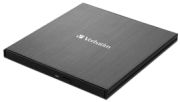
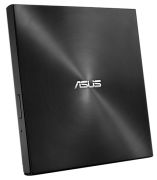
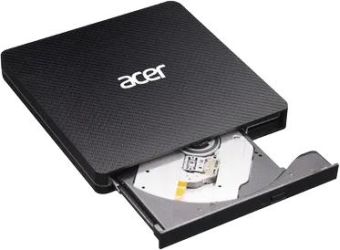
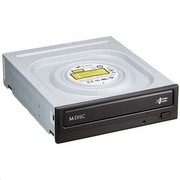
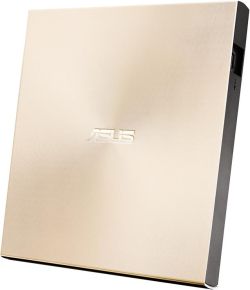
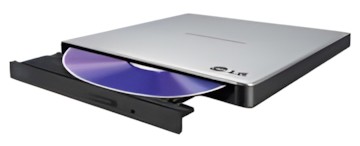



Newly Added Products






Optical drives: Consumer tips

What is an optical drive used for?
An optical drive lets you read and, depending on the model, write discs such as:
- CDs
- DVDs
- Blu-ray discs
Typical current use cases include:
- accessing old photo or music collections
- ripping CDs
- watching or archiving physical media
- installing older software
- creating backup discs
- burning discs for use in older players or systems
This is now a more niche category than it once was, but it still has practical value if your files or media library depend on discs.
Internal or external optical drive: which is better?
External optical drives
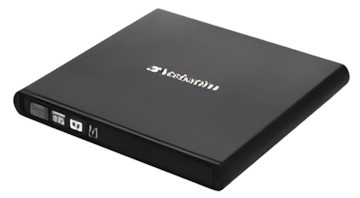
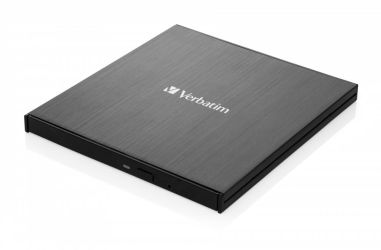
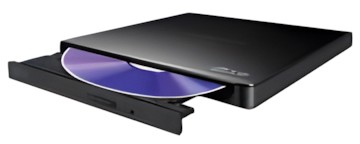
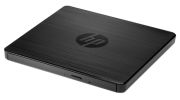
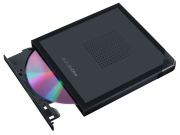
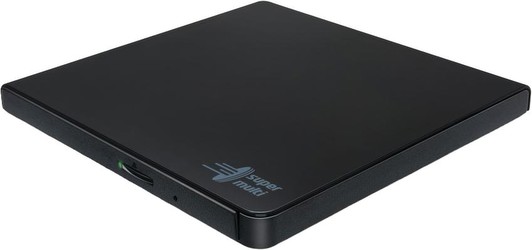
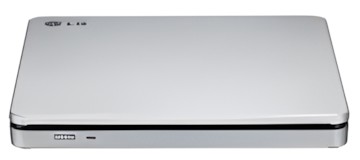
For most buyers an external USB optical drive is the best choice. It is easy to connect, requires no internal installation and works well with laptops, mini PCs and desktop systems that do not include a built-in drive.
External models are best if you want:
- a simple plug-and-play option
- use across multiple computers
- a drive for a laptop or compact PC
- a solution without opening your computer case
This is now the standard route for most home users.
Internal optical drives
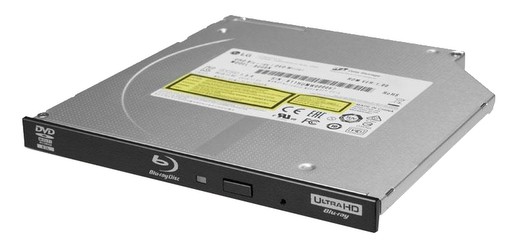
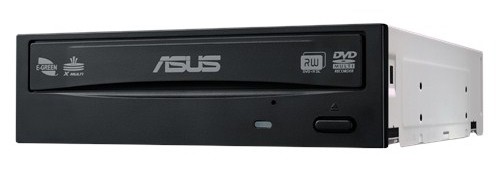
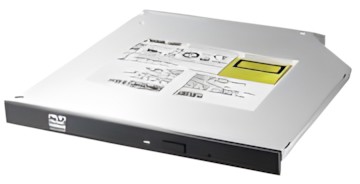
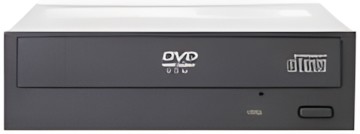
An internal optical drive is mainly relevant if you have a desktop PC case with the right drive bay and want a more integrated setup. This is a more specialist choice than it used to be, because many modern desktop cases no longer prioritise optical drive bays.
If you are buying an internal drive, the current connection to think about is SATA, not older legacy interfaces. Older references to IDE are obsolete and should not be used as current buying guidance.
DVD or Blu-ray: which type do you need?
DVD drives and DVD burners
A DVD drive is enough if you only need to:
- read CDs and DVDs
- install older software
- access archived files
- burn standard CDs or DVDs
If you do not need Blu-ray support, a DVD writer is the simpler and more affordable option.
Blu-ray drives and Blu-ray writers
A Blu-ray drive is the better choice if you want:
- higher-capacity optical storage
- Blu-ray film playback, where supported
- Blu-ray disc writing
- broader backward compatibility with DVDs and CDs
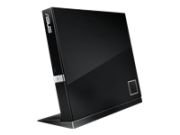
A Blu-ray writer can usually also read and write DVDs and CDs, making it the more flexible option if you still rely on physical media regularly.
What connections should you look for?
For internal drives
Look for:
- SATA compatibility
- a suitable drive bay in your desktop case
- motherboard support
- power connection availability
For external drives
Look for:
- USB connectivity
- compatibility with your laptop or PC ports
- whether extra power is required
- whether the included cable suits your device
Many external drives draw enough power from USB alone, but some systems and usage scenarios can be less straightforward. It is worth checking whether the drive needs:
- one USB cable
- a dual-USB power arrangement
- a separate power supply
This matters especially if you are using older desktops, ultra-thin laptops or USB-C-only devices.
Are read and write speeds still important?
Yes, but not in the old marketing-heavy way. Very specific speed multipliers are less useful to most buyers now than overall compatibility and reliability. In practice, the more important questions are:
- does the drive support the disc format you need?
- is it reliable when reading older discs?
- can it write consistently without errors?
- is it quiet enough in use?
- does it include or support suitable software?
If you are burning discs regularly, error handling and write consistency matter more than chasing the highest headline speed.
What should you check before buying?
1. Disc format support
Make sure the drive supports exactly what you need:
- CD read/write
- DVD read/write
- Blu-ray read/write
Not every drive does all three.
2. Computer compatibility
Check your computer’s ports and operating system. For internal models, confirm that your case and motherboard support the drive properly.
3. Software support
Some optical drives include bundled software for burning, playback or disc management. Others do not. If you need to create video discs, archive files or play specific media formats, check what software is included or what you will need separately.
4. Power setup
External drives vary in how they are powered. Make sure the setup suits your PC or laptop, especially if you are using a slim laptop with limited USB power.
5. Noise and build quality
If you plan to rip music, watch films or archive a lot of media, quieter operation and more solid build quality can make a noticeable difference.
Which optical drive is right for most people?
For most buyers the right choice is a USB external DVD or Blu-ray drive, depending on whether Blu-ray support matters. Internal drives are now a narrower desktop-PC upgrade option rather than a mainstream recommendation.
If you only need to access older CDs and DVDs occasionally, a simple external DVD writer is usually enough. If you want more flexibility and higher-capacity disc support, an external Blu-ray drive is the better long-term choice.